
To find specific usage data:
How to View Your Usage Report
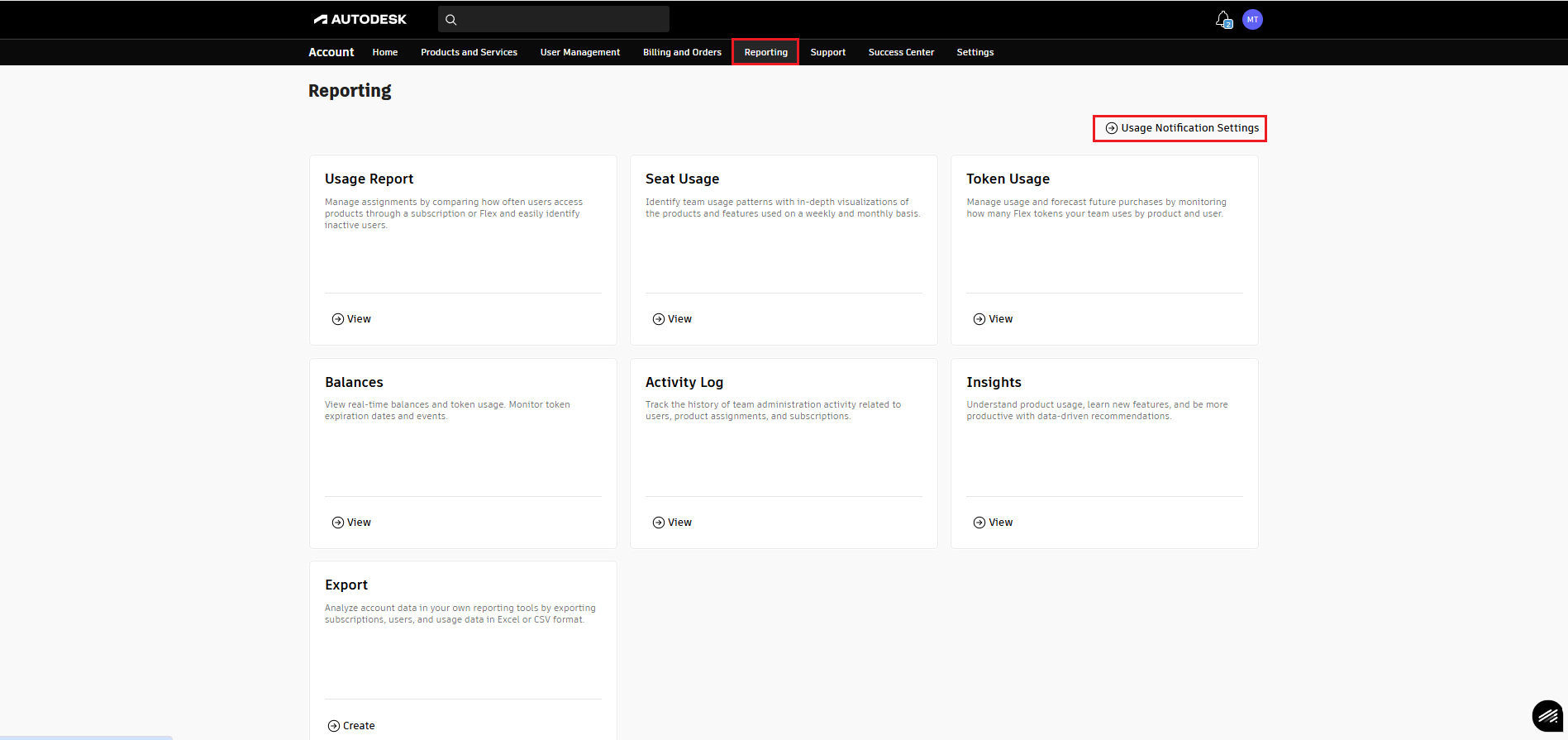
1. Log into your Autodesk account at manage.autodesk.com and select the Reporting tab. Then, choose Usage Notifications Settings.
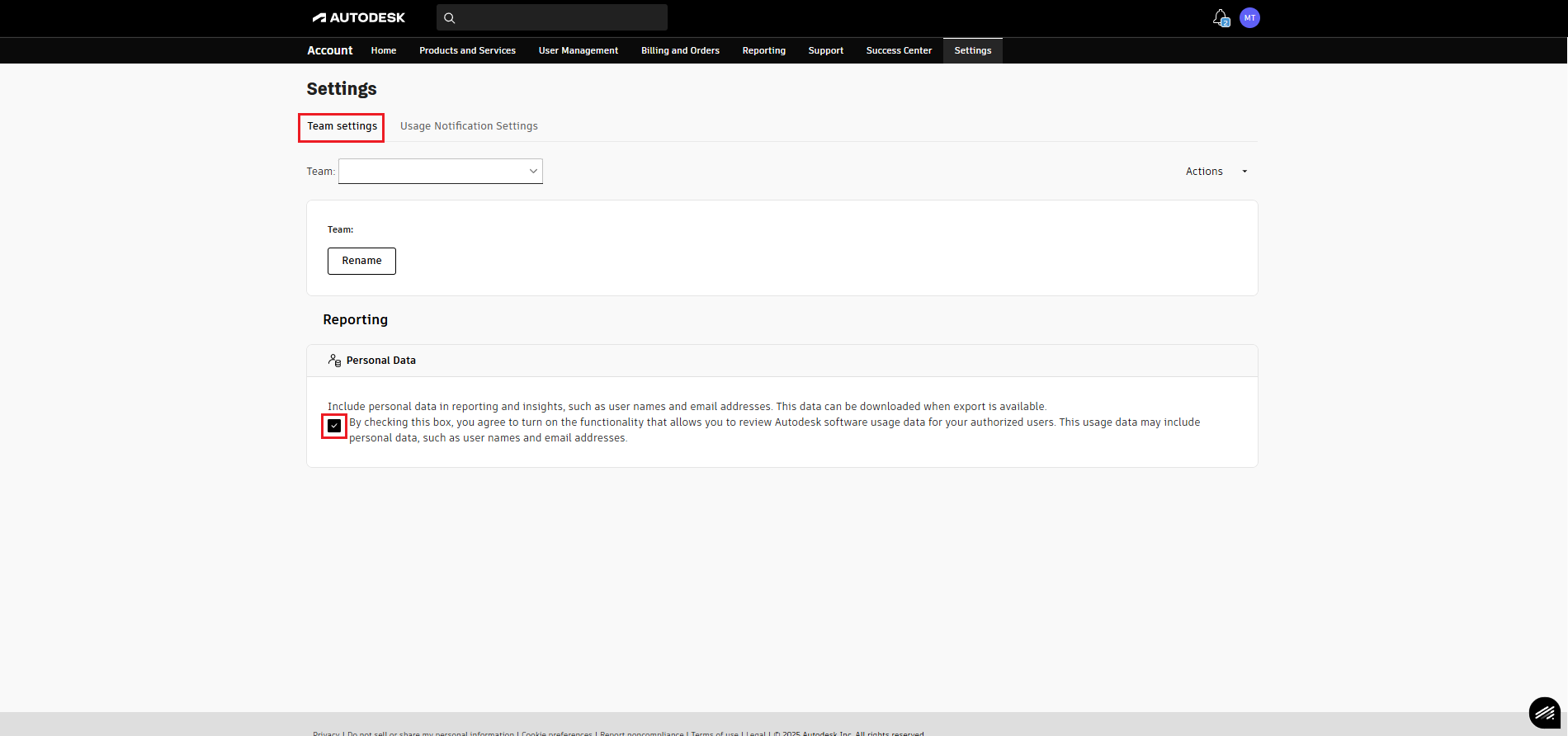
2. Select the Team Settings, and under Personal Data, make sure to check the box to enable your team’s personal data.
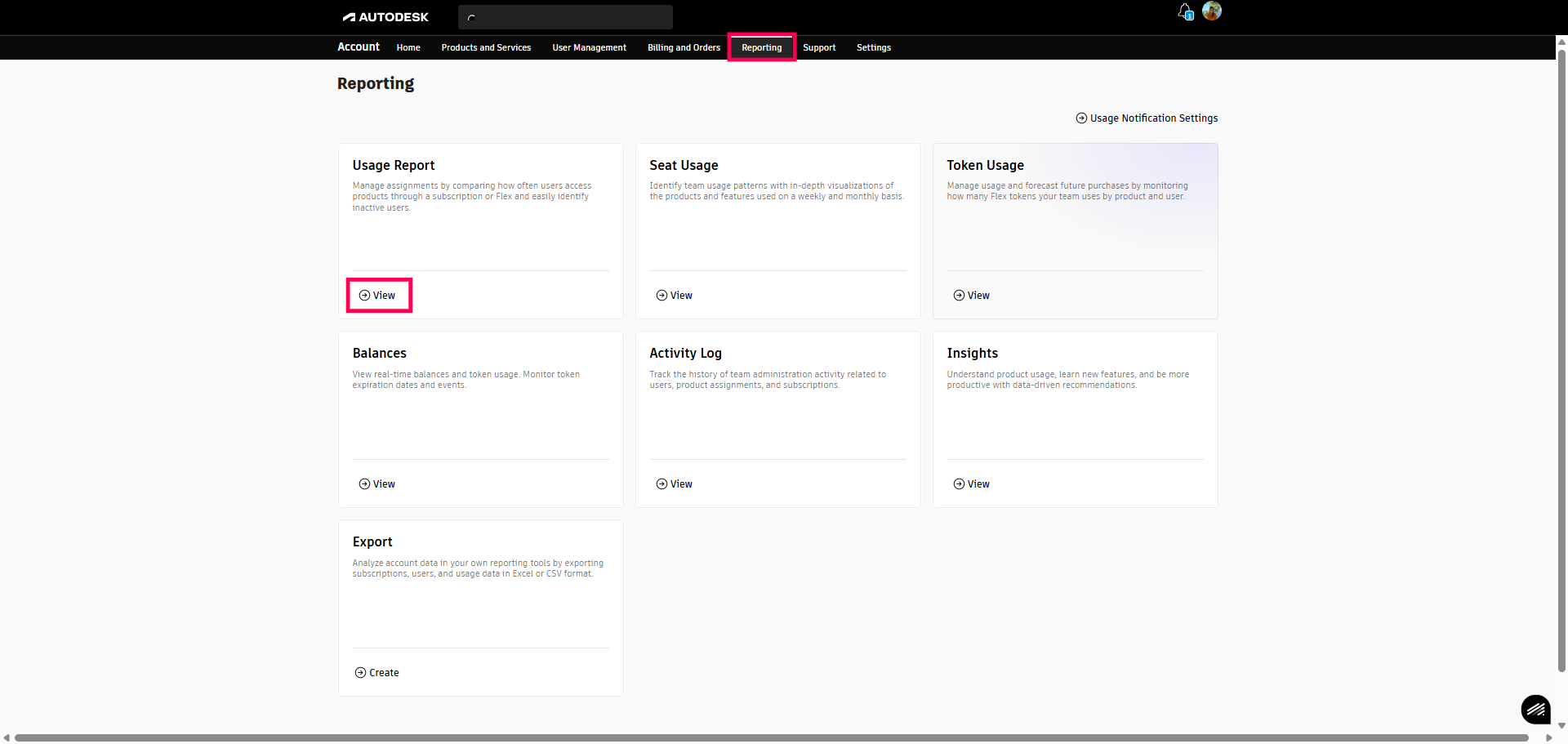
3. Select the Reporting tab and find the Usage Report option. Then, click on the View button underneath it.hoose a custom or preset range.
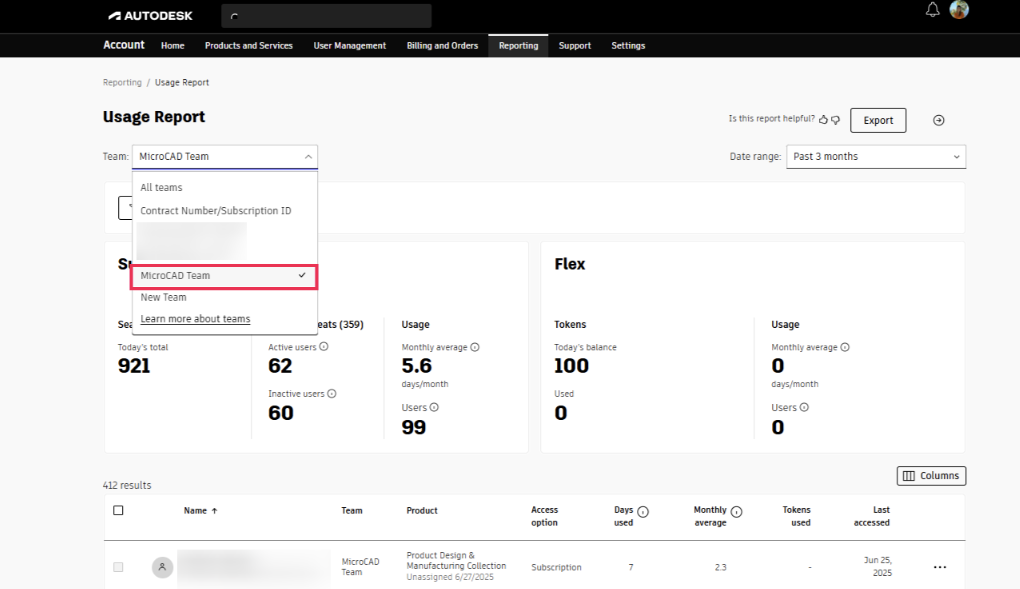
4. Once in the Usage Report, Expand the Team drop-down to view data for selected users.
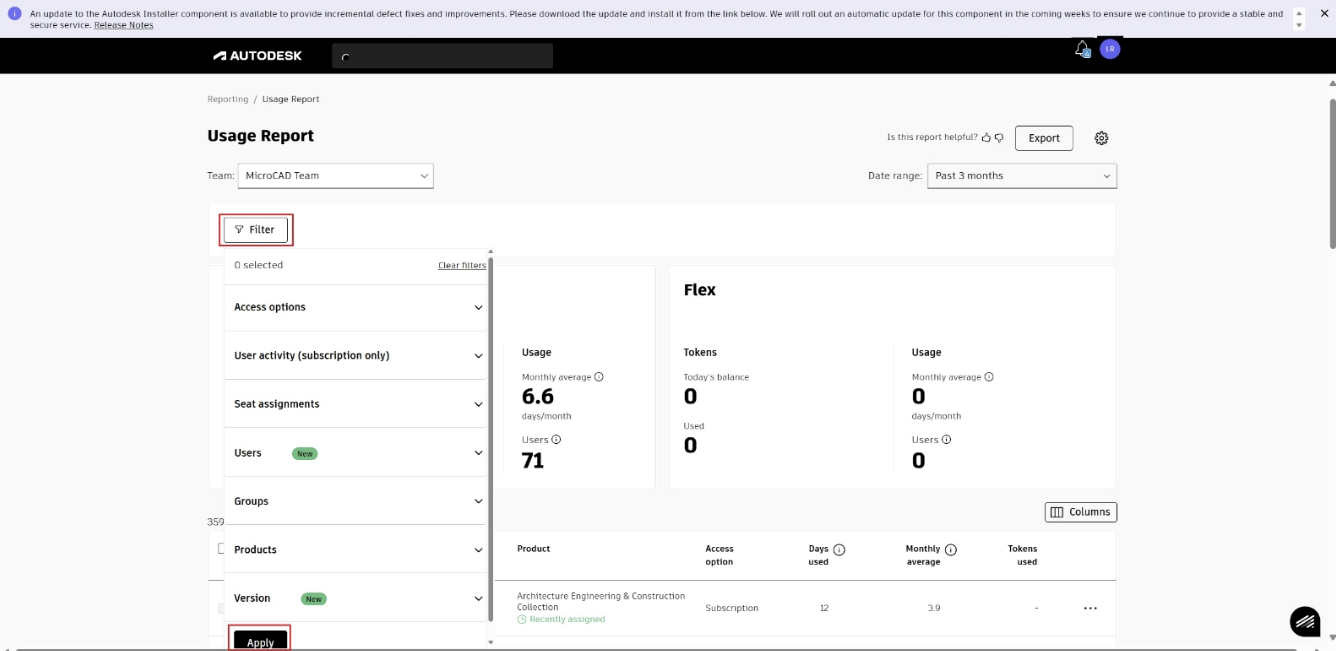
5. Filter results based on user activity, access options, seat assignments, users, products or version. Filters apply to both on-screen data and exported reports.
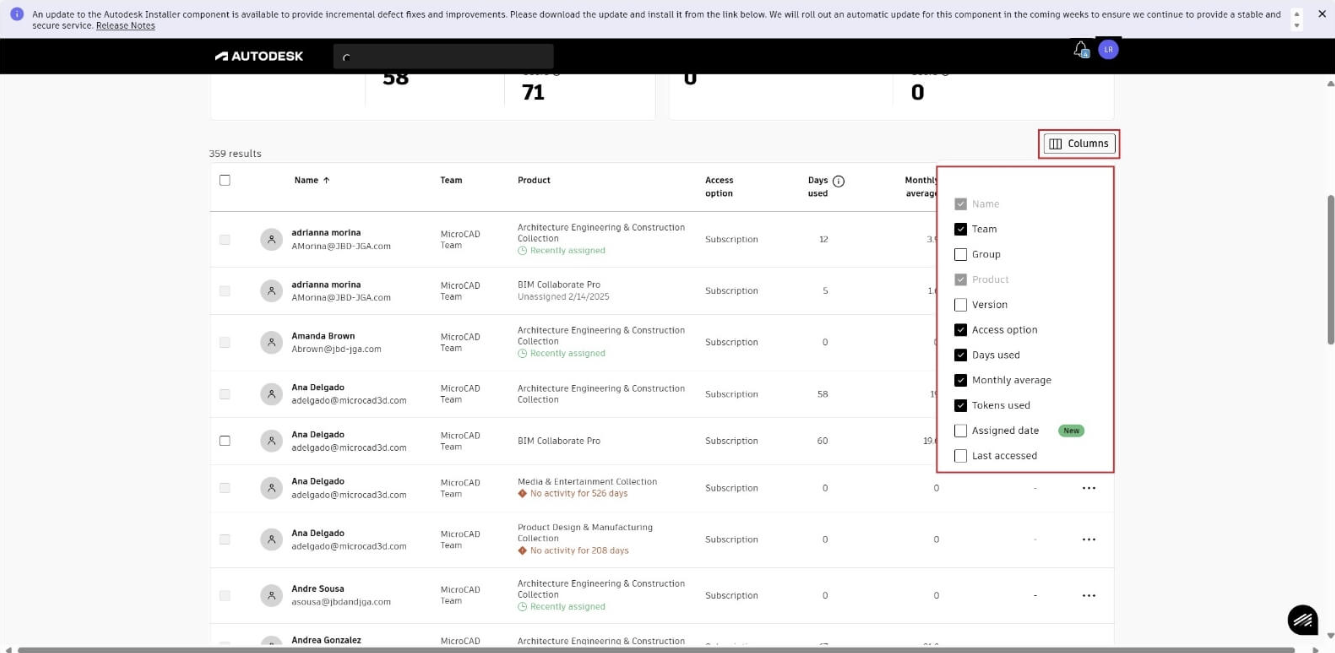
6. Select Columns to customize the data displayed. Click column headers to sort by criteria such as days used or monthly average. These settings carry over to future sessions.
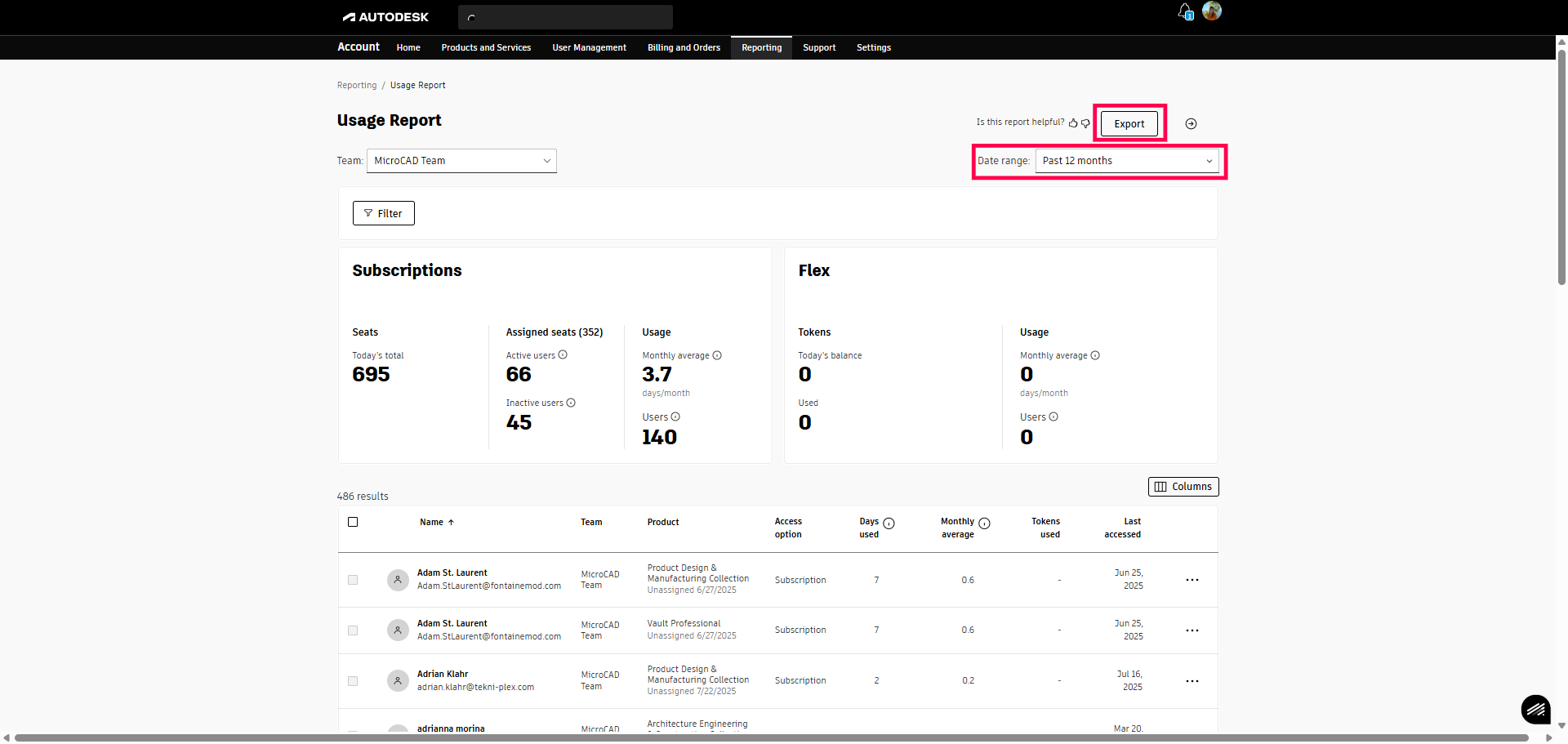
7. Select the Date Range dropdown to choose between the past 30 days, 3 months, 6 months, 9 months, or 12 months. Then, click on the Export button.
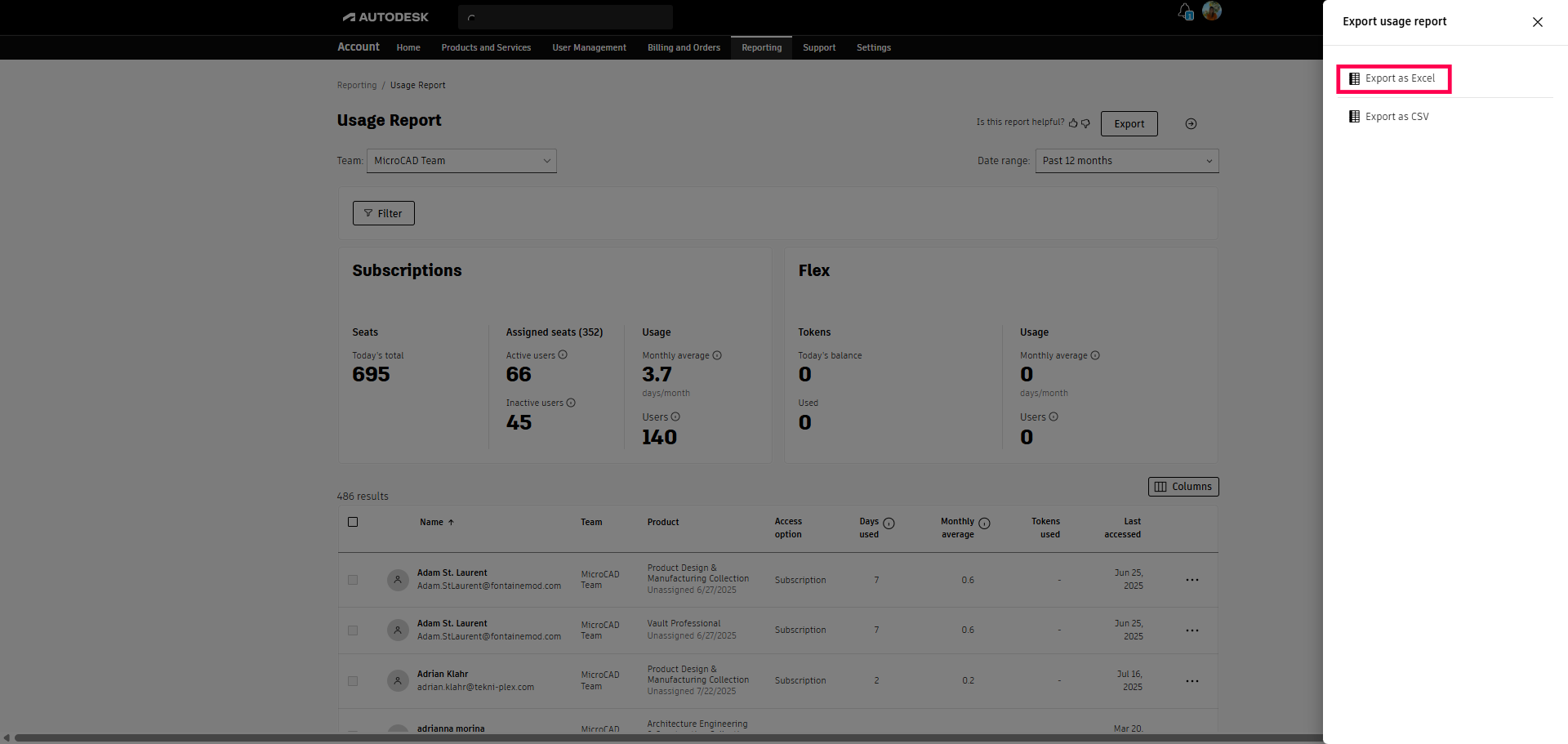
8. A window titled Export Usage Report will open. Select the option Export as Excel.
Once the report is ready, it will automatically download.
- For detailed user information, click on an individual user to view their teams, product use, and access details. You can also quickly access pages to manage their access or review Seat/Token Usage. Use the browser back button to return to the report.


- Note: If your team’s personal data (PII) is enabled, usernames, email addresses, and profile images will be shown. Otherwise, personal data will be hashed.

We’re Here to Help!
Remember, we’re ready to assist with anything you might need.
Feel free to reach out to us at:
 617-321-2400

Our team is available Monday to Friday, from 8 AM to 5 PM EST.
We look forward to assisting you!
